
What are Settings for?
Settings define the reusable values that structure your Player pages. They are defined by Admins and shared across the whole Club: everyone sees the same values. They are not personal preferences — for those, see Preferences.
The Pro and Youth sections do not share their Settings: each has its own lists, which you edit separately from the Settings page of the active section.
Everything is editable and customizable to match your Club's needs: Operf provides starting values, but you are free to rename, reorder, delete or add to them.
There are seven types of Settings:
- Positions — the Player's playing position
- Levels — the assessed level
- Profiles — playing profiles (a Player can hold several)
- Priorities — recruitment priority
- Statuses — tracking status
- Contracts — contractual situation
- Past roles — the role previously held (e.g. starter)
On top of these come the Yes/No Settings, which work differently: they are tick-box attributes that you define yourself and that then appear on every Player page of the section. Your Club starts with a few examples ("Work ethic", "Exp. Europe", "Fit coach"…), free for you to adapt.
Note
The Settings page is reserved for Admins. A change applies to the whole Club, not just to you.
Adding a Setting
Open the section's Settings page from the user menu > Settings.
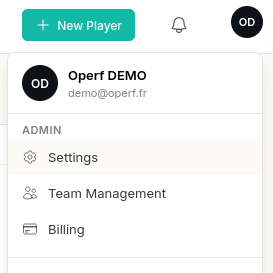
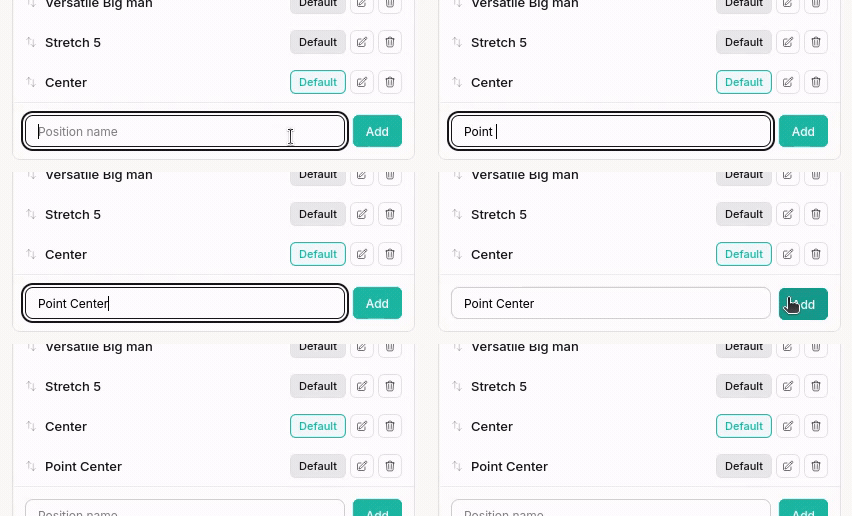
The Settings entry, in the Admin group of the user menu In the block for the type you want (e.g. Positions), type the name in the field at the bottom of the list, then click Add. The Setting is immediately available on the section's Player pages.
Setting a default value
A Setting marked as the default is pre-selected when a new Player page is created. Handy for the value you use most often: it is already in place, and you only change it when needed.
On the Setting's row, click Default. A Default badge appears on the row. Only one default is possible per type: naming a new default automatically removes the previous one.
The default value only affects new pages. Existing Player pages keep the value already assigned to them.
The case of Yes/No Settings
Yes/No Settings work on the same principle, with a two-step choice: on the Setting's row, the No / Yes selector indicates the value that will be ticked by default on new Player pages.
- No — the attribute is unticked by default (the most common case).
- Yes — the attribute is ticked by default.
Here there is no limit of one per type: each Yes/No Setting has its own default, independent of the others.
Reordering
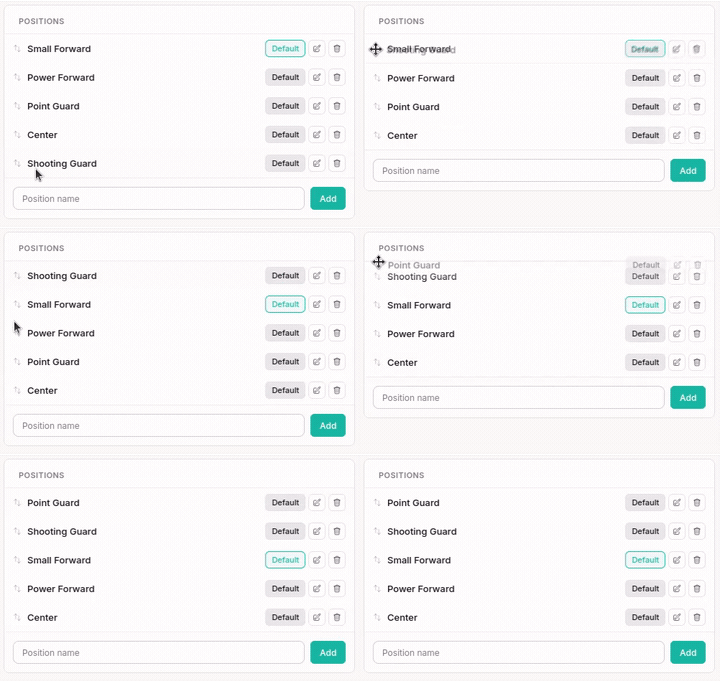
Drag a row to change the display order of the Settings in the dropdown menus of the Player pages. The icon to the left of the name shows that the row can be moved. The new order is saved as soon as you release it.
Deleting (archiving)
Deleting a Setting archives it: it disappears from the menus but Players already using it keep it.
Archived Settings are hidden by default. Turn on Show archived, at the top of the Settings page, to reveal them: they appear at the bottom of their list, struck through and marked Archived, with a Restore button.
While it is archived, a Setting keeps its name reserved: you cannot create a new one of the same type with the same name. The error message tells you so — restore the old one rather than creating another.