
Two distinct steps
Filling a Roster happens in two steps, and that is what throws people off the first time:
- Add the Player to the Roster — they land in the Player pool;
- Place them in a column — by drag and drop, view by view.
Until the second step is done, the Player is indeed part of the Roster but counts towards no total.
Step 1 — add to the pool
Adding works exactly like for a List — see Lists.
From a Player page, use the Add to list button in the action bar: the menu offers your Lists and your Rosters.

From the Players table, the + button at the start of the row does the same thing, Player by Player.
The menu offers your editable Rosters: the ones you own and the ones shared with you with write access. An archived Roster does not appear there.
The Players added then show up in the Roster's pool, at the top of the board, waiting to be placed in a column.
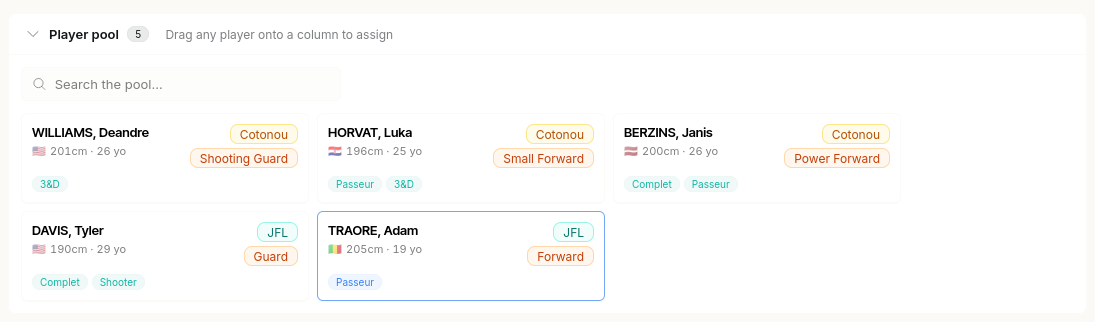
You can add both Pro and Youth Players — the action is available from both sections, provided you have a Pro role. The same Player can only be added once per Roster.
Step 2 — place in a column
On the board, drag the Player's card from the Player pool to the column you want. You can then:
- move them from one column to another;
- reorder them inside a column;
- send them back to the pool by dragging them outside the columns.
The pool can be filtered with the Search the pool… field when the list gets long.
Remember: this placement applies to the displayed view only. Switch to the other tab to do the matching placement there — see Creating a Roster.
Removing a Player
Sending a Player back to the pool does not remove them from the Roster: they are still part of it, simply without an assignment in the displayed view.
To take them out completely, click their card then Remove from roster in the window that opens: they leave the Roster and all their assignments, in every view.
Removing a Player from a Roster does not touch their page: neither their data, nor their Reports, nor their Comments.
Turning on minutes and the salary cap
These two options turn the Roster into a team-building tool: you no longer just look at who plays where, but at how playing time is spread and where the payroll goes. Useful to check that a rotation fits into 200 minutes, that no position is under-covered, or that a signing fits the budget before you commit.
Only turn them on if you need them: a Roster stays perfectly usable without them, simply to organize Players into columns.
The Minutes and Salary columns only appear if you turn them on, when creating the Roster or from Edit roster:
- Track minutes per player — with target minutes per game, between 200 and 240 (a team's total over 40 minutes with 5 Players);
- Enforce salary cap — with a cap between 0 and 50,000.
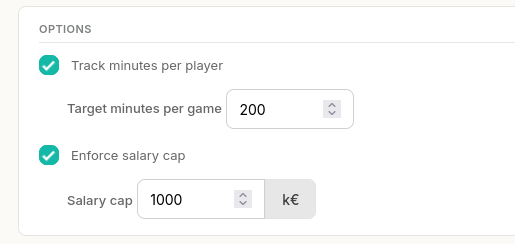
You can turn on just one of the two.
Entering the values
On a Player's card, open Update information. You enter:
- the minutes, between 0 and 48;
- the salary.
Tip
These values belong to this Roster only. They do not change the Player's page, and the same Player can carry different values in two Rosters — which is what makes it possible to simulate several scenarios.
To help you, the window recalls the salary references from the page (estimation, net, gross, total) when they are filled in.
Reading the totals
Totals only count the Players assigned to a column of the displayed view — a Player left in the pool is not counted.
You see the totals per column and the grand total of the view. If the total goes over the target minutes or the salary cap, it is highlighted.
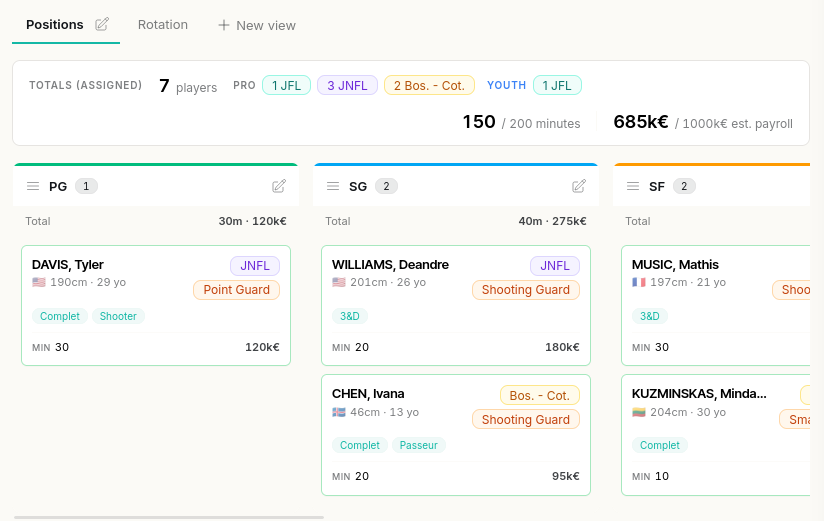
The top banner also recalls the number of assigned Players and their split by Status (colored badges). If the Roster mixes Pro and Youth Players, both counts are shown separately.
This banner only appears if you have turned on minutes or the salary cap.
The card colors
The border of each card shows whether its values are complete:
- green — everything that is turned on is filled in;
- orange — one value out of two is missing (minutes or salary);
- red — no value is filled in.
The card also shows Missing minutes, Missing salary or Missing minutes & salary depending on the case.

Cards stay neutral if you have turned on neither the minutes nor the salary cap. Youth Players keep a dedicated border color, with no completeness code.